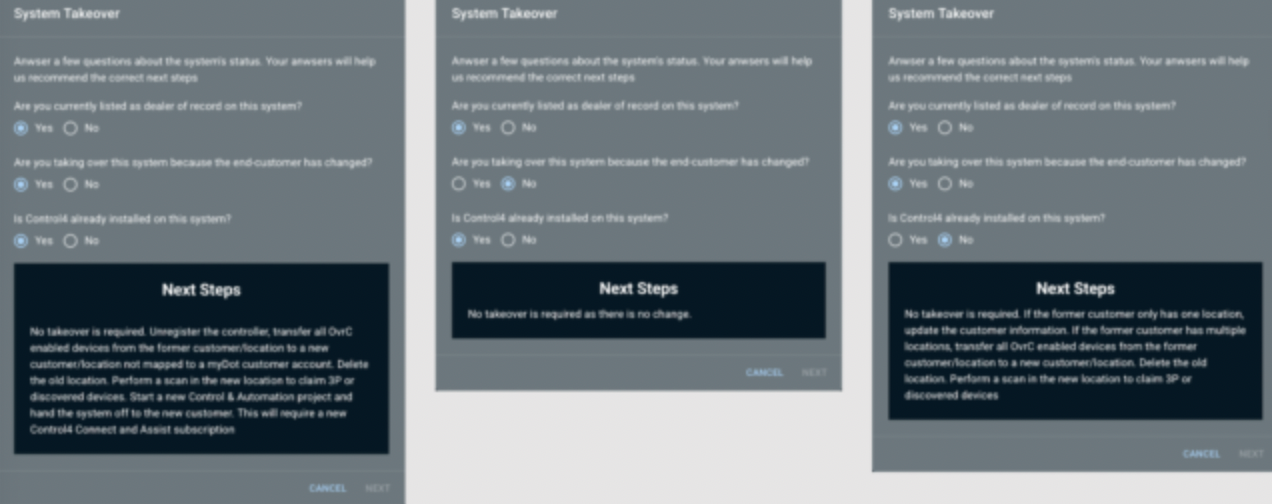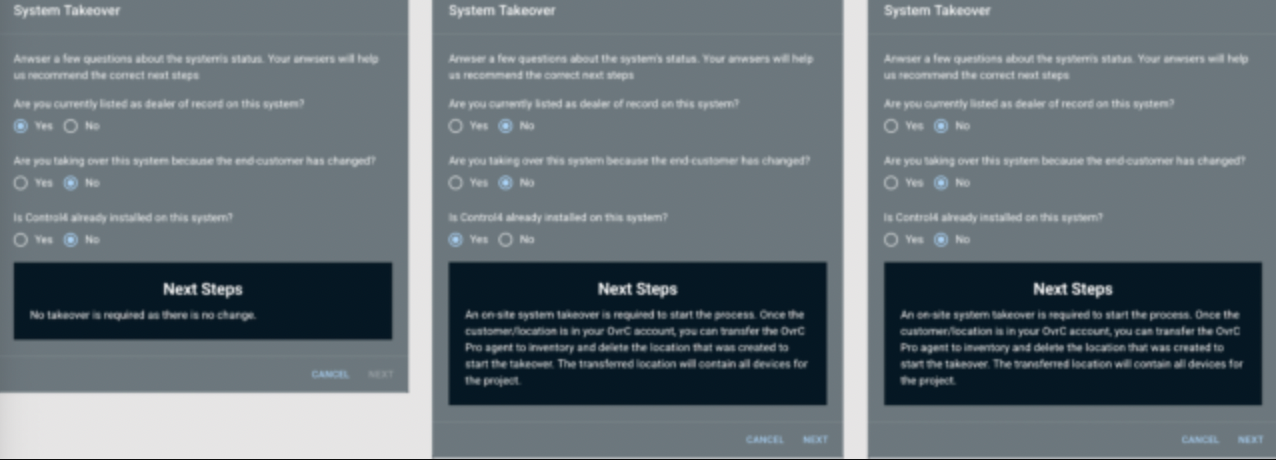
An improved and refined workflow is now available that removes the onsite requirement for most dealer-of-record changes. One scenario with a brand-new customer and a new dealer will still require an on-site SYSTEM TAKEOVER for security purposes.
See the details and next steps for all scenarios below in the SYSTEM TAKEOVER MATRIX section of this post.
Also, an existing customer’s OvrC Pro device (Control4 Controller, OvrC Pro Hub, or Araknis/Pakedge router) can now be transferred to a new customer or to Inventory, eliminating the need to delete and reclaim OvrC Pro devices in order to transfer between locations.
Case 1: Customer-initiated Account transfer
Customers who want to change their dealer-of-record can either go to:
- The Control4 App > Settings > Support > Your Independent Professional Integrator, press the person icon at the top right, and tap CHANGE MY PRO
- customer.control4.com > My Account > Smart Home Pro, and click CHANGE MY PRO
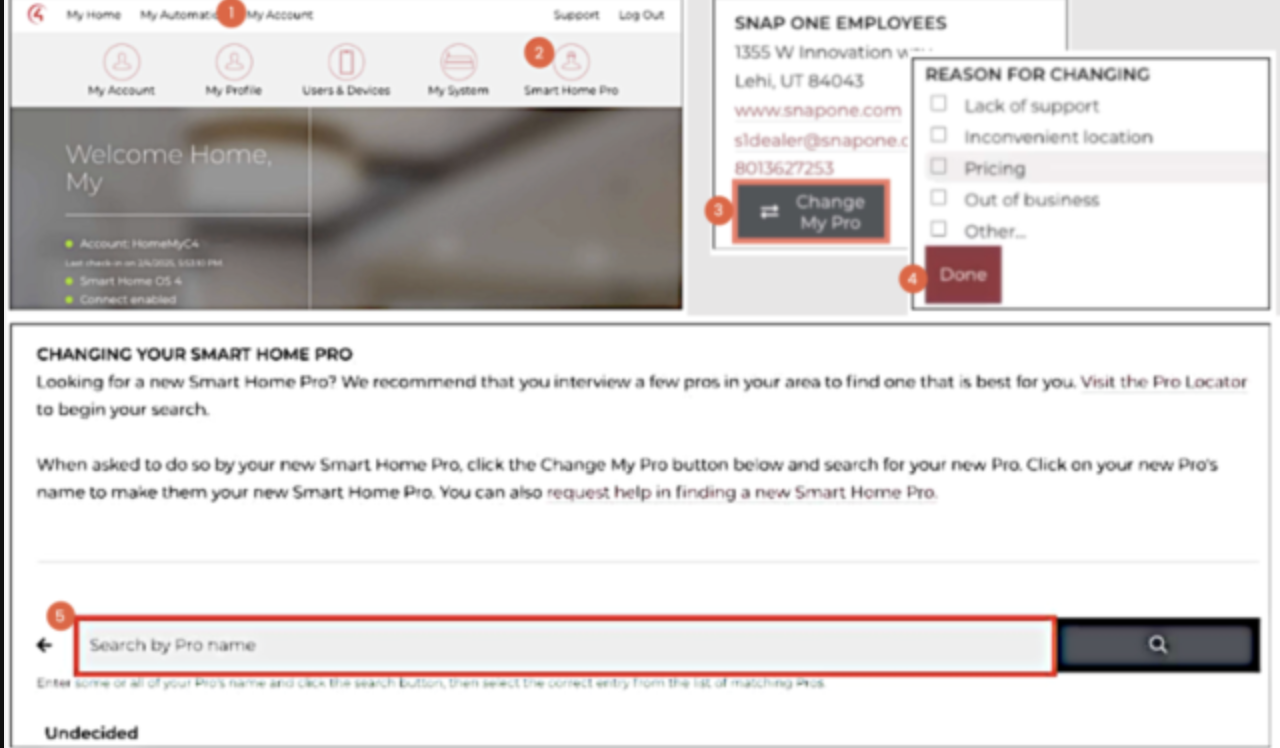
The customer will then be prompted to select a new dealer by typing their name into the SEARCH field. Once selected:
- The customer’s Control4 account and OvrC account will be moved to a temporary holding account, disabling remote access for the previous dealer-of-record
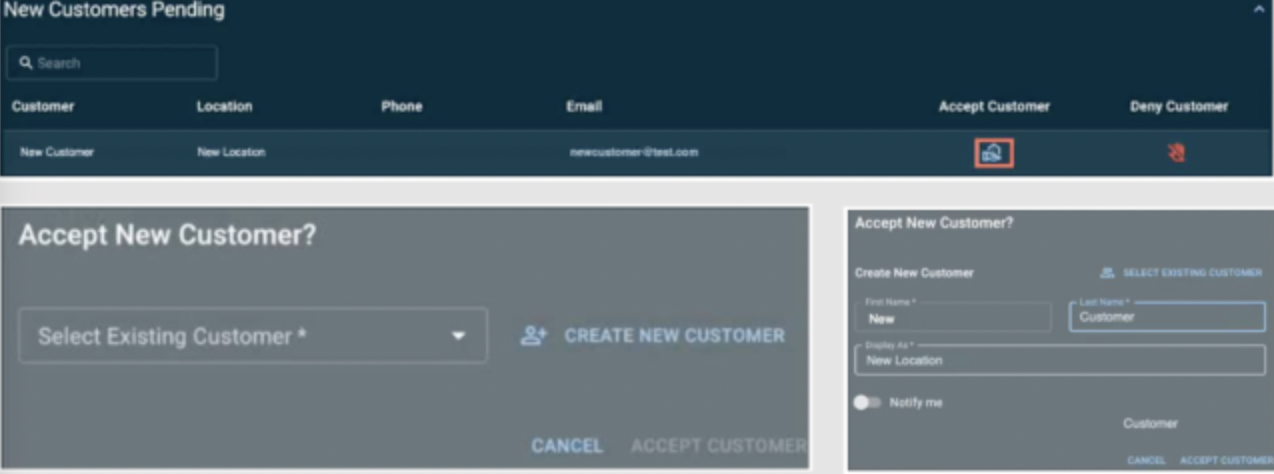
- The new requested dealer will receive an email alerting them to a new pending customer with a link to the Customer LIST in OvrC with the option to ACCEPT or DENY the new customer request
- ACCEPT: The customer’s Control4 account and OvrC account will transfer to the new dealer-of-record, including all permissions, remote access, and revenue share (if applicable)
- DENY: The pending customer will be removed from the new dealer’s Customer List in OvrC, leaving the customer accounts in the temporary holding account; the customer will receive an email indicating that the request had been declined and inviting them to identify a new potential dealer-of-record
Case 2: Transfer the Account to a new customer
There are times when one of your customers wants to transfer account ownership to a new customer. For example, an existing customer has sold their residence, along with their Control4 system, to a new homeowner. As you are already the dealer-of-record for the account, a system takeover is not necessary. Instead, the existing customer account needs to be transferred to a new customer account.
We have implemented two new enhancements in OvrC that will greatly simplify and streamline that process.
OvrC Pro Agent Transfers
Until now, a customer account transfer required a separate OvrC Pro Device, like the OvrC Pro Hub, to execute a SYSTEM TAKEOVER to claim devices from an existing system in order to move them to a new customer site.
Today, OvrC Pro Devices can now be transferred to INVENTORY, like all other exclusive brand devices. This allows you to:
- more easily reuse a single OvrC Pro Hub for the next customer account takeover
- transfer a previous customer’s OvrC Pro Device to a new customer location and execute a network scan, which will effectively transfer all scanned devices to the new customer account.
System Takeover Matrix
To simplify the complexity of account ownership, dealer permissions and security requirements, the SYSTEM TAKEOVER button in OvrC now includes a matrix survey to identify the correct process required. To access, navigate to the CATEGORIES page from the top menu, click REMOTE MANAGEMENT and then PRO TOOLS
- Are you currently listed as the dealer-of-record for this system?
- Are you taking over this system because the end-customer has changed?
- Is Control4 already installed on this system?
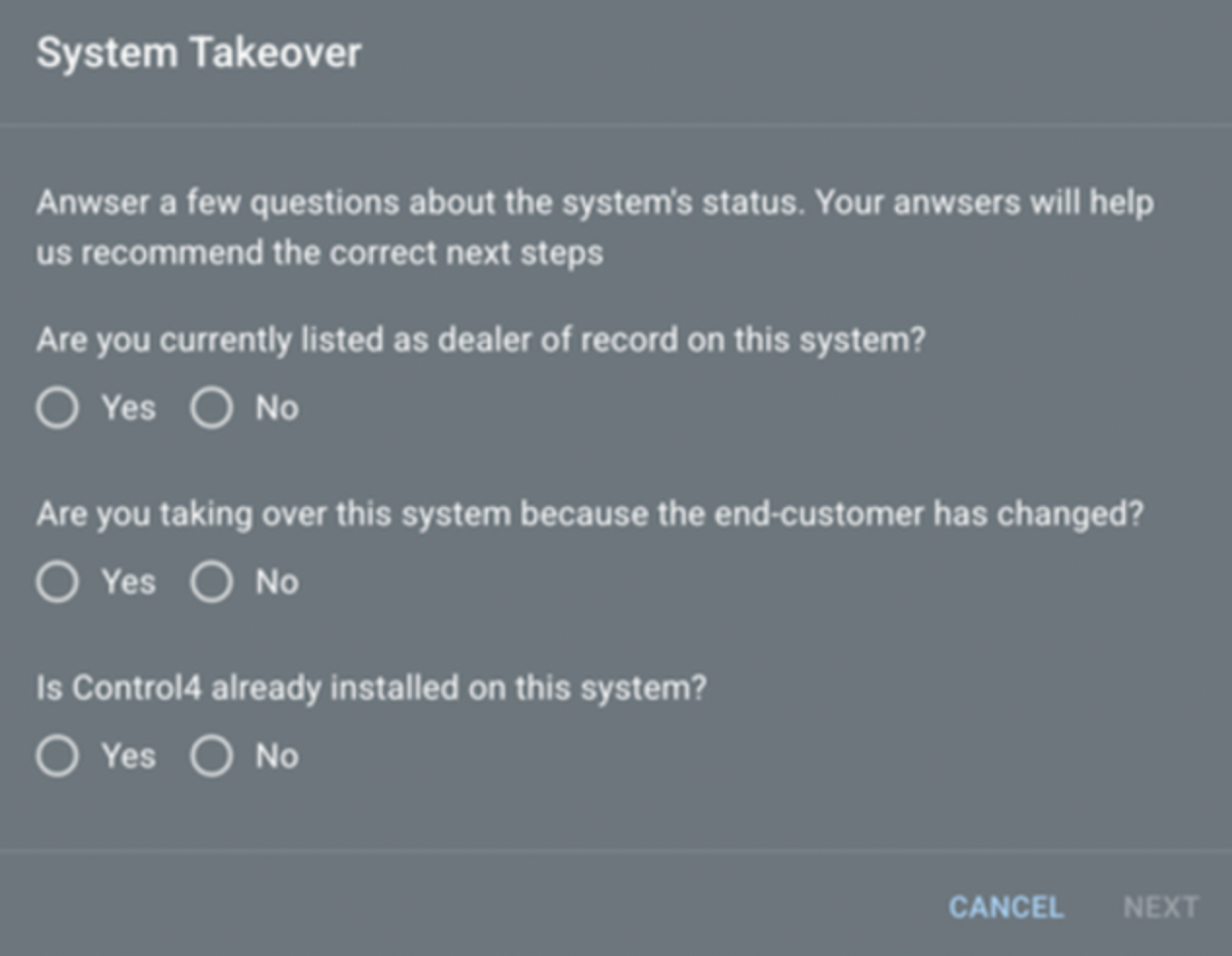
Based on your responses, you will be prompted with the next steps to complete the request.
💡
NOTE: Some scenarios will still require an on-site SYSTEM TAKEOVER for security purposes. For example, a new homeowner is asking you to be their new Control4 dealer.
For a complete guide for the System Takeover Matrix, with descriptions for each required process, check out the following scenarios and their recommended next steps: