
Auto-claim is only available for Locations with an OvrC Pro device. It is enabled by default, but you can change this under:
- Add/Edit Location
- Categories > Remote Management > Configuration
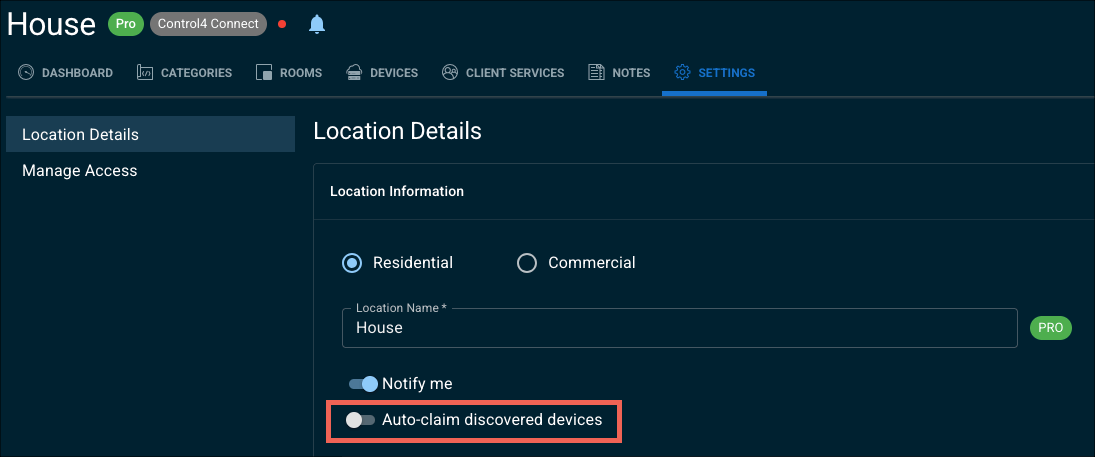
If a new devices joins the network when Auto-claim is disabled, a banner appears to tell you a new device has been detected. Click the notification to review the device and decide if you want to claim it
Why would I disable auto-claim?
Building customer racks in the showroom
You're building a customer’s rack in the showroom, with an OvrC Pro agent on the network. To prevent the rack from being claimed in the showroom's OvrC Location:
Disable auto-claim on both the showroom and the new customer’s OvrC location. This prevents any devices from being claimed to either OvrC location. You can enable the feature after installing the rack at the customer location.
Pro Tip: Segment the showroom/office network from the customer’s rack by using a separate router or VLANs. Create a VLAN in the rack assembly area that is not scanned by the Showroom’s OvrC Pro agent. This prevents devices from being discovered by the auto-claim process.
Locking down the device list
After an install is complete, and you've configured the OvrC Location, disable the Auto-caim feature. This prevents devices that the customer introduces from being claimed. Like mobile devices, personal computers, or other devices, you wouldn't typically support. This also keeps the Device List clean.