
OvrC Pro agents perform regular network scans. There's two possible scenarios when a device is discovered:
- If a device is unclaimed, and auto-claim is enabled (on by default), the device is added to the Location. Click here to learn how to disable auto-claim.
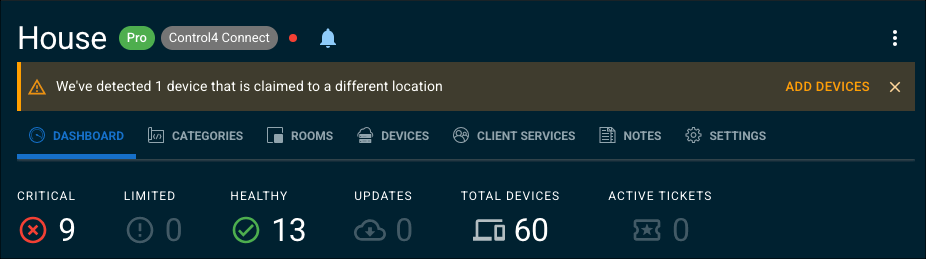
- If the device is claimed to a different Location or account, a banner appears to inform the user.
When the Pro agent scans a registered device, a banner appears on the Location Dashboard and the Device List.
Select the device(s) to transfer to your current Location, then click Add Devices to Location. You cannot transfer a registered Control4 controller or primary Ryff controller. These must be unregistered to transfer.
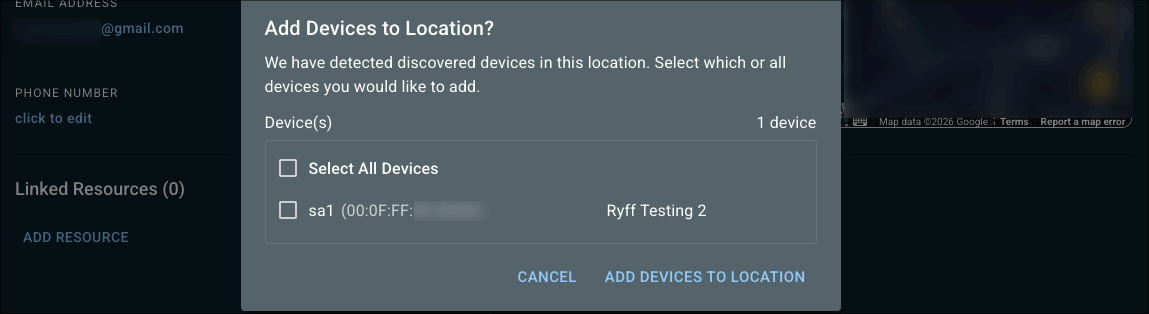
Note: The device name(s), notes, or activity logs from the previous Location are not transferred.
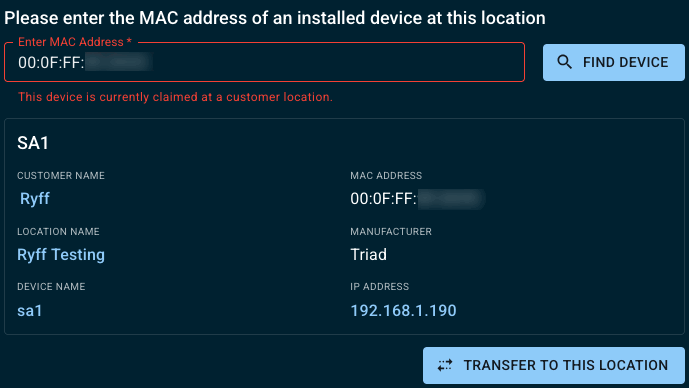
If you try to manually add a device that's claimed in another Location in your OvrC account you'll be asked if you want to transfer the device to the new Location.
Why wouldn't I transfer the entire site?
Devices are installed in a different location than where they are claimed
You've given an employee a device that was no longer needed in a customer’s system. The employee installs the device and tries to scan it into their OvrC Location. A banner appears stating the device is claimed elsewhere.
The employee uses the banner to claim that specific device.
Multiple dealers are servicing the same project
A customer has multiple dealers servicing their property. For example, they have separate dealers for their network and the Control4 system.
Each dealer has a Pro agent claimed in their OvrC account. The network dealer can use the single device transfer feature to move the devices they're responsible for to their OvrC Location.
Once the devices are appropriately divided, the network dealer disables the auto-claim function. The Control4 dealer leaves auto-claim on to support devices being added to the network.