
OvrC Locations are tied to the customer's Control4 account, so you must unregister the primary controller in OvrC. Not Composer. Then transfer each first-party device to a new OvrC Customer Location.
💡 Note: OvrC Connect licenses are non-transferable. The new customer must purchase their own.
Taking over a system from another dealer?
If you're taking over a Control4 system from another dealer, perform an OvrC System Takeover to move the system to your OvrC account. Then follow the instructions below to move the system to a new OvrC Customer Location.
Unregister the primary controller
- Go to the OvrC Customer Location where the Control4 system is currently claimed.
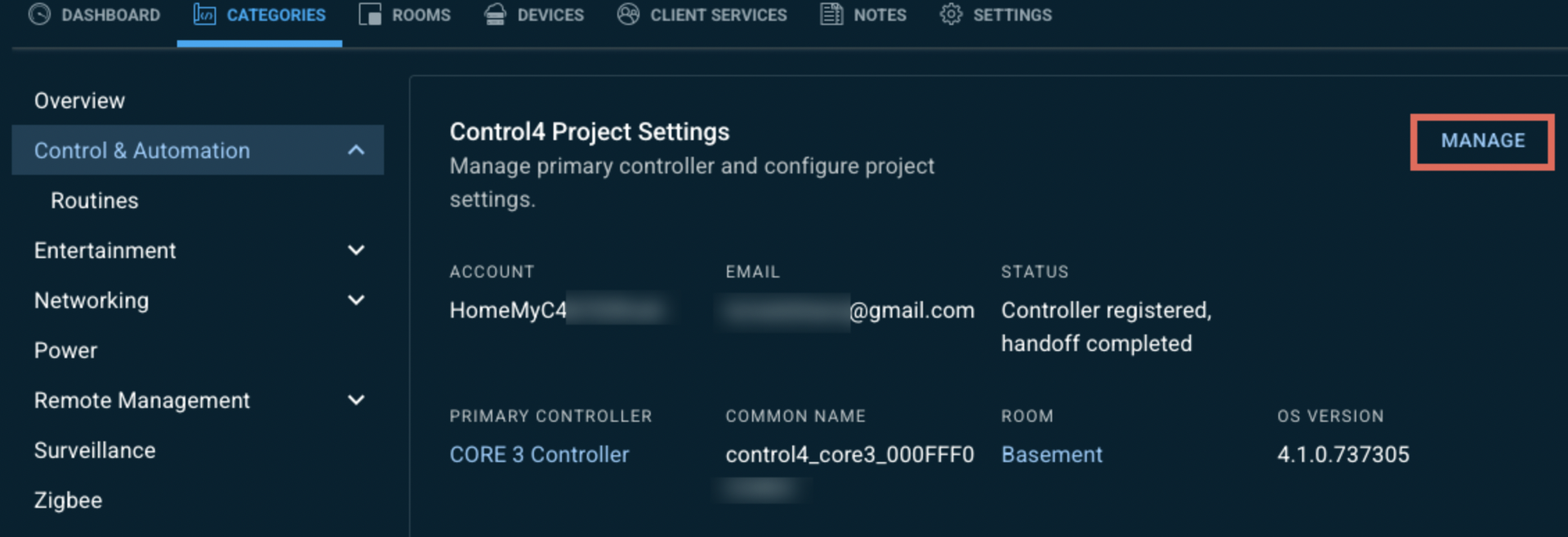
- Go to Categories > Control & Automation.
- In the Control4 Project Settings, click Manage.
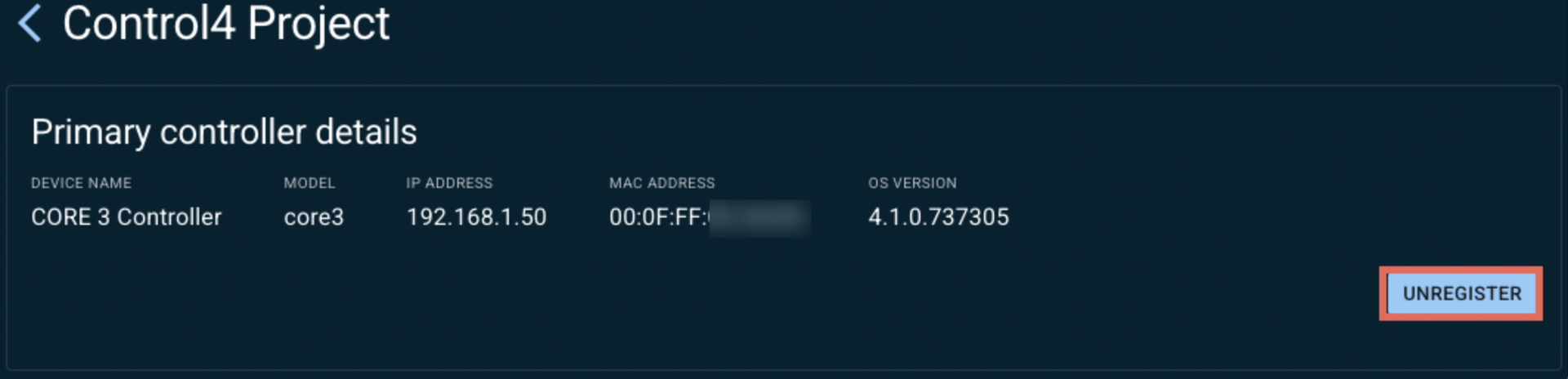
- Click Unregister.
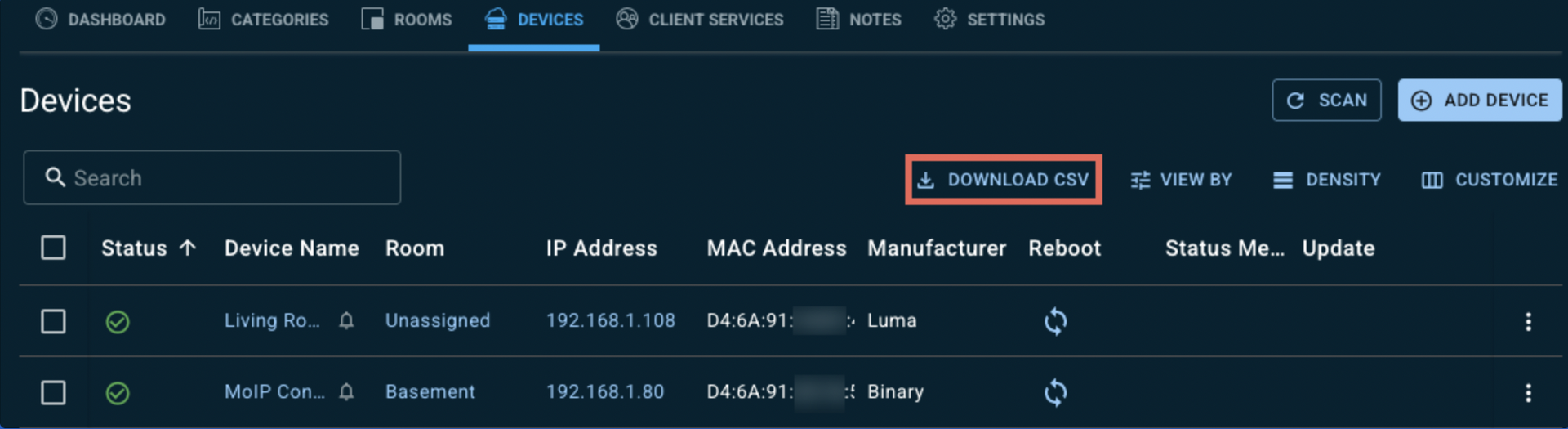
- Go to the Devices tab and click Download CSV for a copy of the device list to help you rename the devices in the new OvrC Customer Location.
- Go back to the Customer list and create a new OvrC Customer and Location.
Transfer the controller and additional OvrC Pro devices
- Return to the original Customer Location and click on the Devices tab.
- Select the Control4 controller.
- Click the kebab menu in the upper right corner and select Transfer.
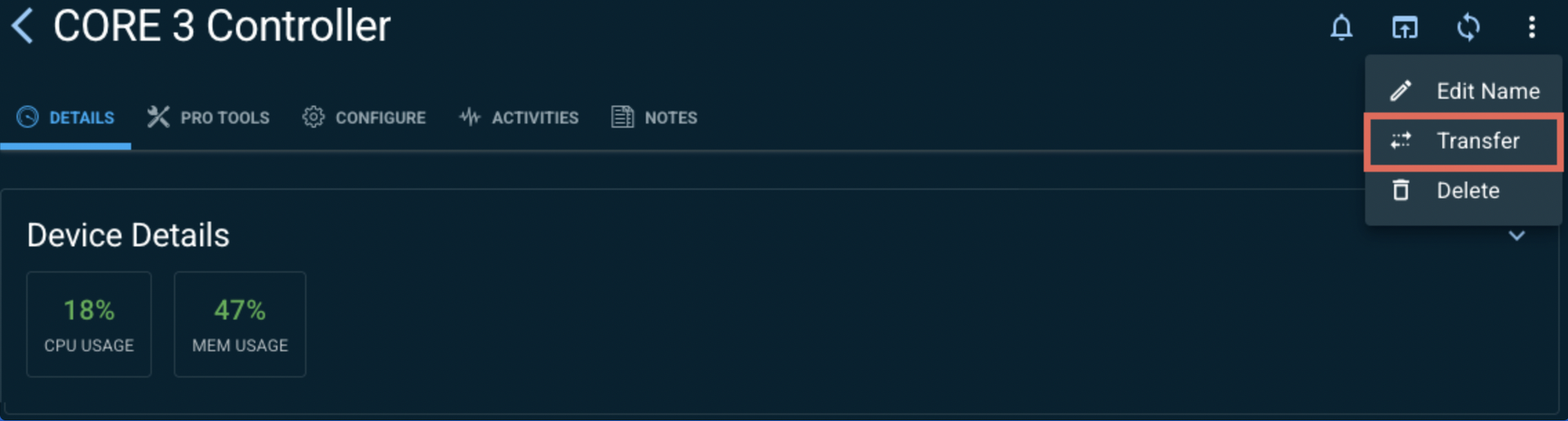
- Select Customer, then select the newly created Customer and Location from the drop-down menus.
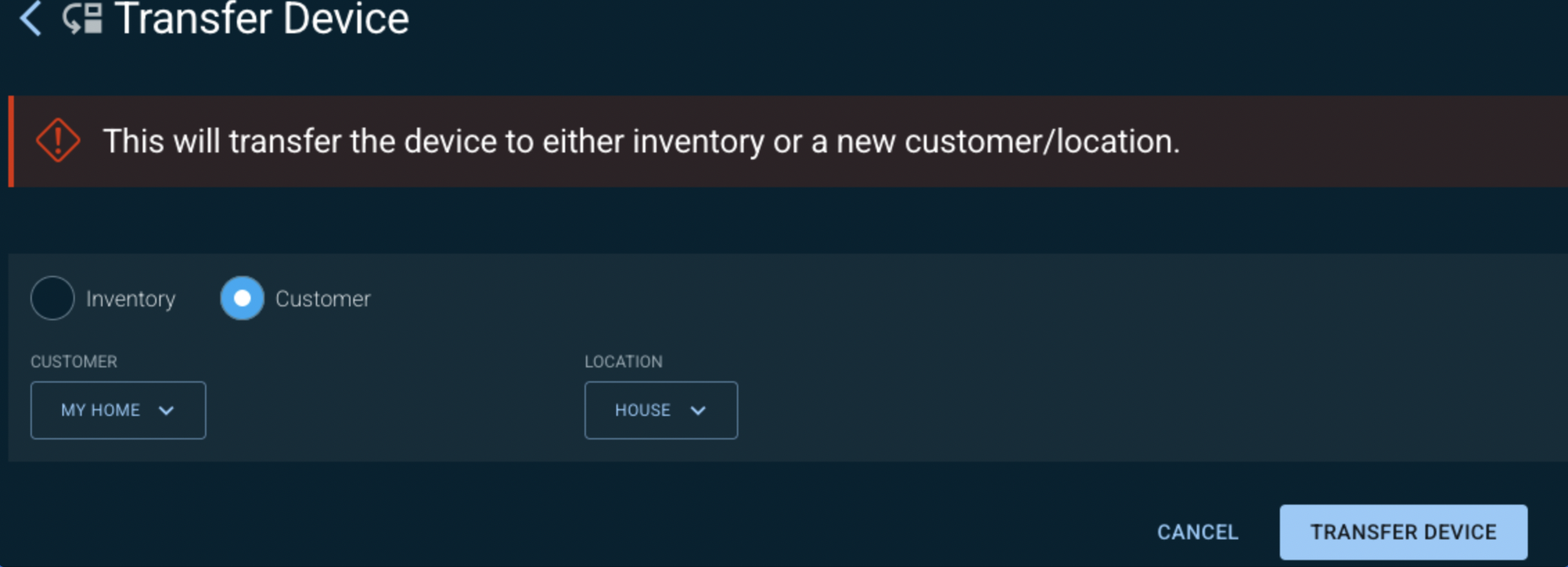
- If an error occurs, go back to the original OvrC Customer Location and make sure the primary controller is unregistered.
- Repeat these steps for each OvrC Pro Device in the location. Below is a list of all the Pro devices:
- Araknis x10 Routers (110, 110W, 310)
- Araknis x20 Routers (220 and 520)
- OS 3.3.3+ for EA, CA, and CORE Controllers
- OvrC-300 and 100 Hubs
- ihiji APP-750
- ihiji APP-2000
- ihiji APP-2100
- ihiji APP-2100-UK
- Pakedge WR-1
- Pakedge WR-1-1
- Pakedge NK-1
- Pakedge RK-1
- Pakedge RT-3100
- ihiji APP-2000-UK
Transfer the first-party devices
- In the original Customer Location, go to the Device list.
- Click the first-party device name.
- Click the kebab menu in the upper right corner and select Transfer.
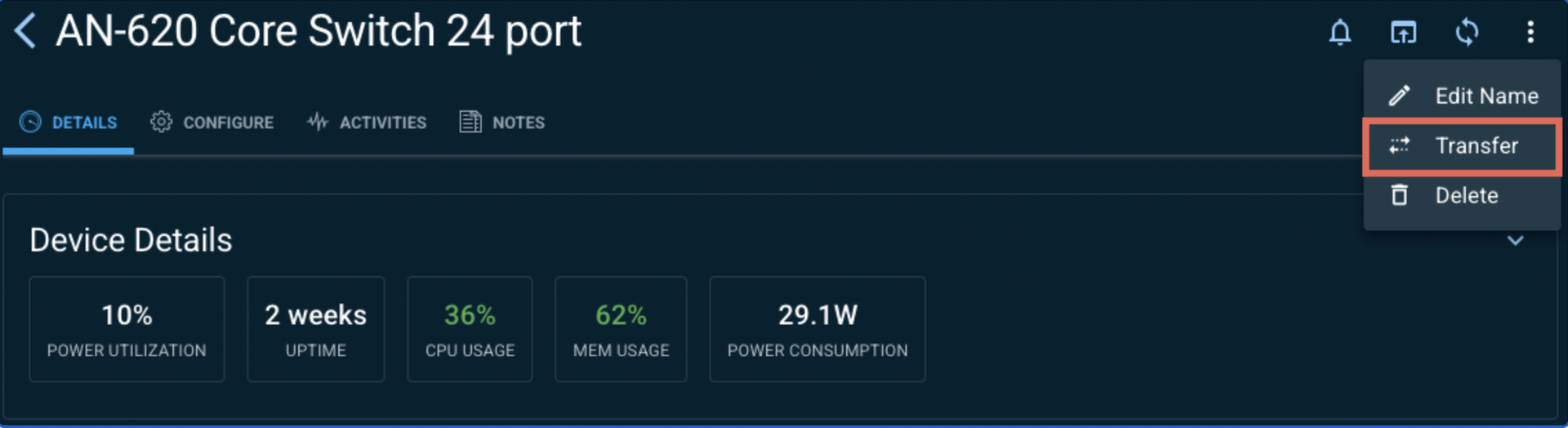
- Select Customer, then select the newly created Customer and Location from the drop-down menus.
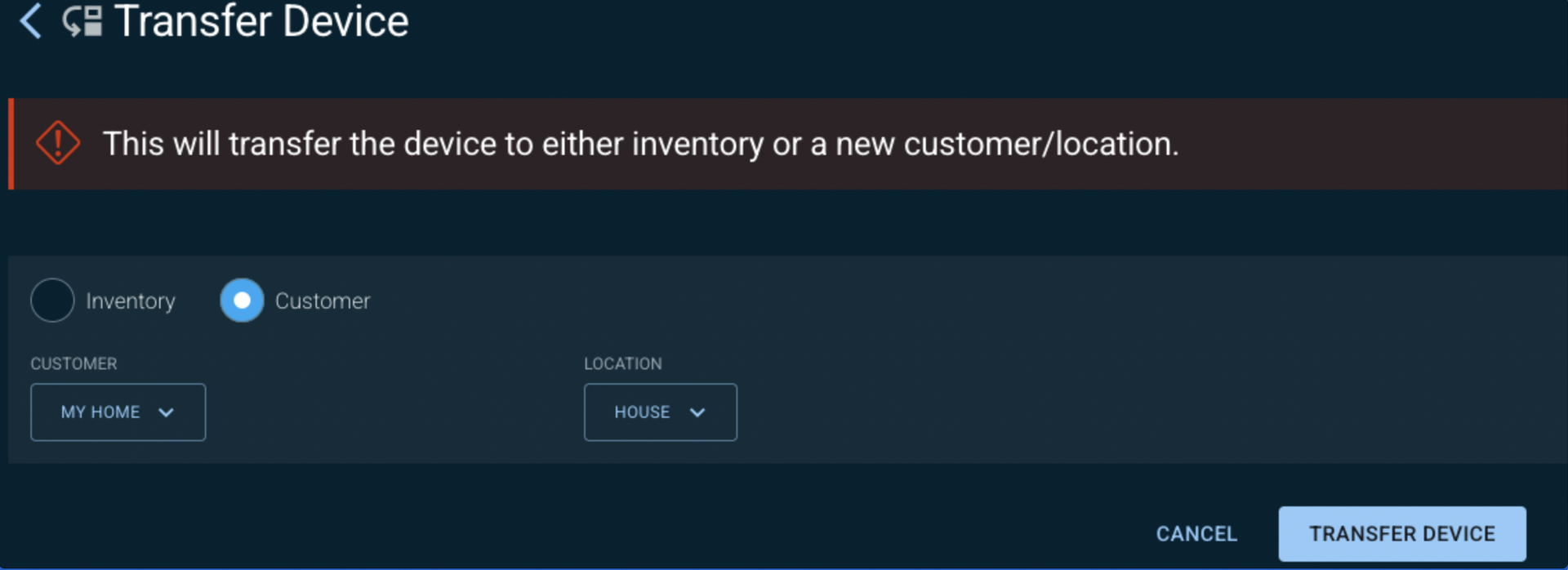
- Repeat steps 1-4 for each first-party device. Devices discovered by the OvrC Pro agent cannot be transferred this way.
- Delete the original OvrC Customer Location. This removes the discovered third-party devices from OvrC so you can scan them into the new Location.
Configure the new OvrC Customer Location
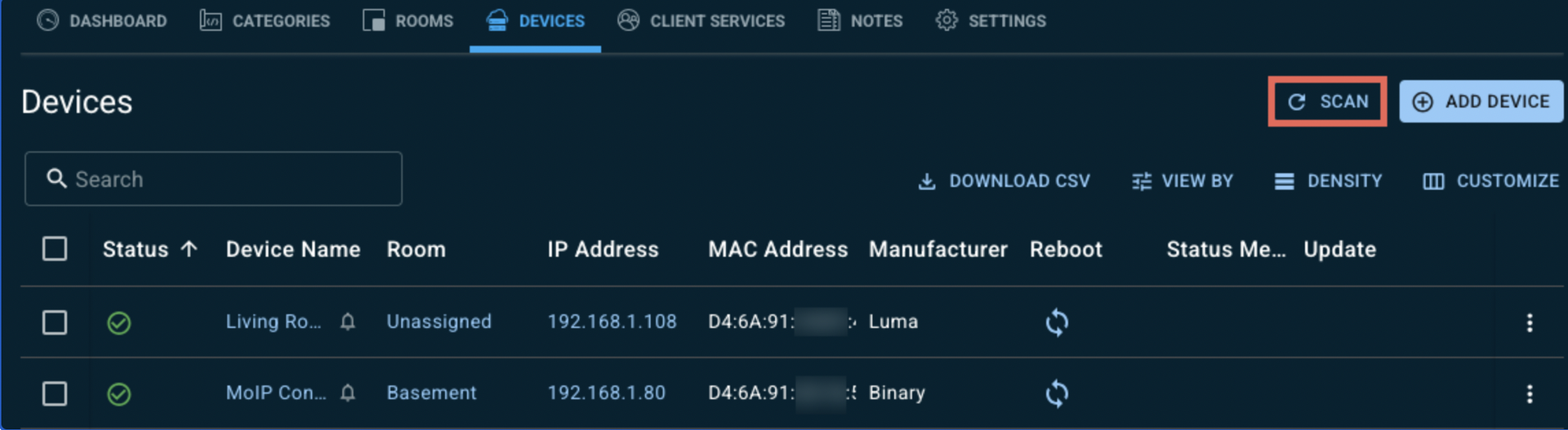
- In the new Customer Location, go to the Devices tab and click Scan to claim all the third-party devices on the network.
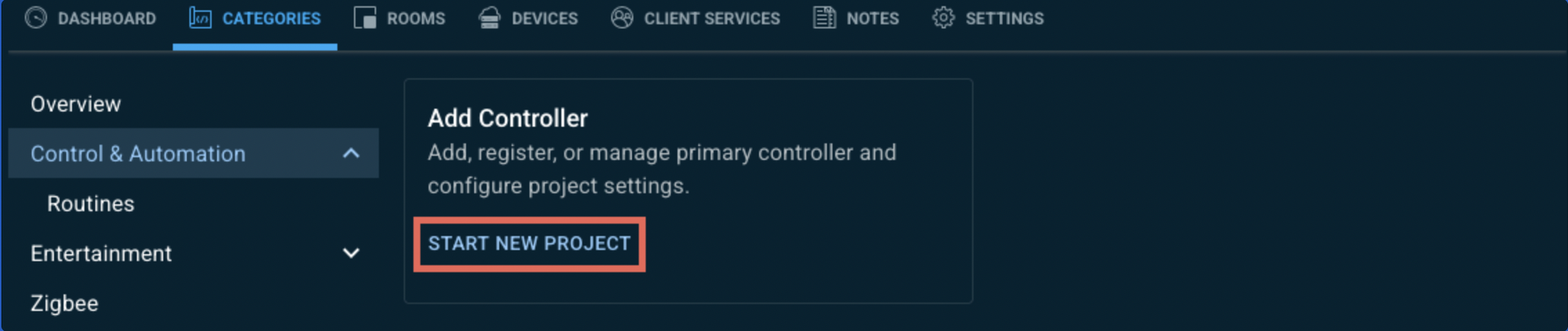
- Go to Categories > Control & Automation and click Start New Project to register the Control4 controller.
- Use the temporary Control4 mobile app credentials to verify the system works as expected.
- Complete the Customer Hand-off process.
💡 Note: OvrC Connect licenses are non-transferable. The new customer must purchase their own.