
Verifying your customer and dealer accounts are linked is a crucial step in upgrading to X4. Check customer.control4.com, OvrC, and Composer to ensure success.
Verify in customer.control4.com
Have the customer log in to customer.control4.com and go to My Account > Smart Home Pro. The email should match what you're using in Composer Pro and what your OvrC account is mapped to.

If it doesn't match, have them click Change My Pro. After they finish the questionnaire, they'll search for your dealership and click the ✓ button to send you an email confirming you're taking over the account.

Verify in OvrC
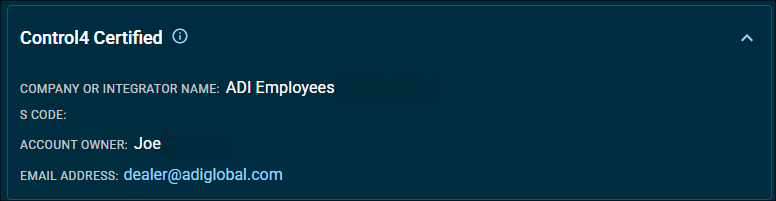
Go to Account > Overview > Control4 Certified. Make sure this information matches your customer's Smart Home Pro.
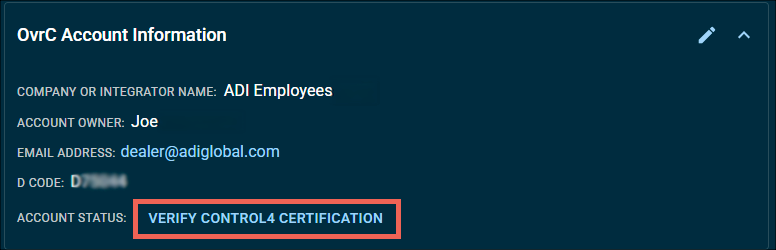
If you haven't mapped your Control4 dealer account to OvrC, click Verify Control4 Certification and complete the steps presented to you.
Verify in Composer Pro
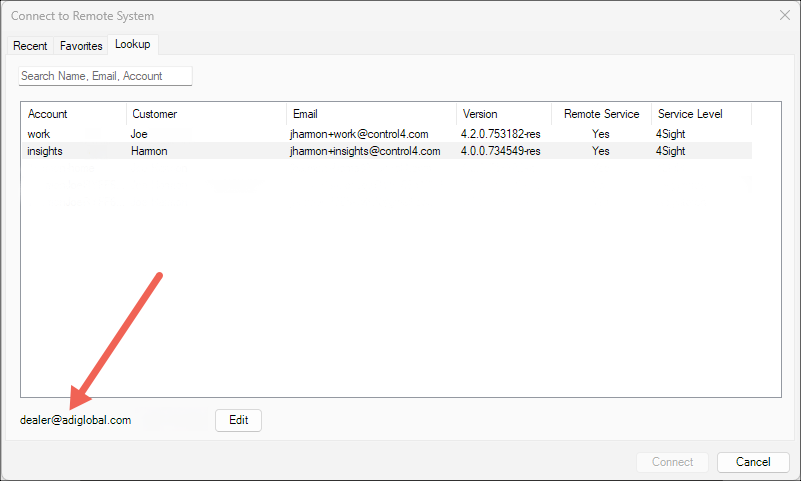
If you haven't connected to a project, go to Remote > Lookup and verify the email in the lower left corner matches what your customer see's as their Smart Home Pro.
If you are connected to a project, go to File > Cloud Management. If the account login does not match what your customer's Smart Home Pro.