This article will give a brief overview of very useful drivers that have a place in almost every Control4 project. If you would like more information on individual driver capabilities, please refer to the documentation tab of the driver after adding to a project.
Drivers That Should Be In Every Control4 ProjectRoom ControlSnapshot (OS 2.9+)AV Local Source and AV Path SetterRelay Motorization Drivers for 2.9+Auto LockMockupancySecurity LightLED WizardNo ControlAnnouncement On/OffTimer Experience ButtonLight/Fan Button Timer
Room Control
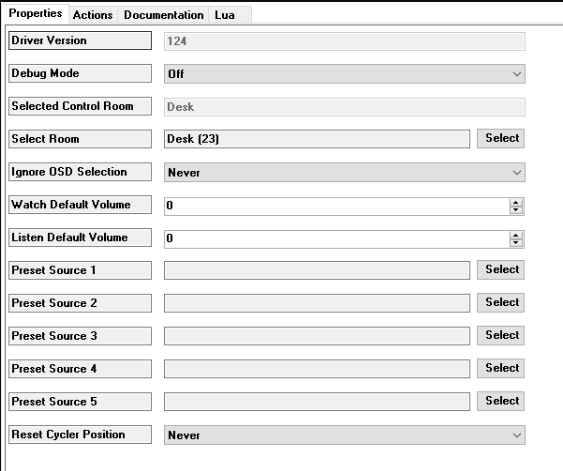
Once added to a project you will have the ability to connect keypad buttons directly to a room’s commands without the need to program the button presses to do these actions. One of the main advantages is for a room’s volume control, which would normally require programming when the keypad button is pressed and released. Now just add the Room Control driver to the project then connect the keypad button to the volume up/down command. There are also room programming options available that make programming against audio/video source selections much easier, links to example KB articles below.
How To Use The “Room Control driver” To Control Volume In a Room
Programming a TV Lift/ Projector Screen To Raise/Lower When a Video Selection Is Made
Set Keypad LED Color Based On Audio Selection
Change Screensaver to Display Current Media When Playing Audio
Join Audio and Video Zones With Room Control Driver
Cycle Between Sources Using Room Control Driver
Whole House Room Off Control Using Room Control Driver
Snapshot (OS 2.9+)
This driver has built-in variables used to track the state of Lights, Blinds, Fans, Rooms, and Thermostats. There are 2 programming options available on this driver to Take a snapshot and Recall a snapshot. Take snapshot will record the states of all devices/rooms that you have defined in the driver, Recall snapshot will set all of those devices/rooms back to the state that was previously recorded. One very useful use case for this driver is to program a keypad button to take a snapshot of lights and rooms, and another to recall that snapshot. This now gives the homeowner the ability to set light levels and source in a room with the Take keypad press, then recall the same light levels and source playing in the room with the Recall button press.
Below are the Recall default and selected state, and the Snapshot default and selected state.

Audio Volume Issues Before or After an Announcement
Display a Camera on an HC On-Screen Navigator then Return to Previous Source – 2.6.0+
AV Local Source and AV Path Setter
These drivers give you the ability to restrict the available audio or video path for a chosen source. One example for the need of this driver is when you have TV audio out connected to distributed audio. When you’ve made this connection it can cause switching issues because it will see an available audio path through that TV. Because of this the TV may seem to turn on out of nowhere when you turn on a source in a different room.
Smart TV Output to Whole House Audio 2.6.0+
Using AV Path Setter Driver as a Digital-Audio-Converter (DAC)
Relay Motorization Drivers for 2.9+
Updated Relay Motorization Drivers for 2.9+
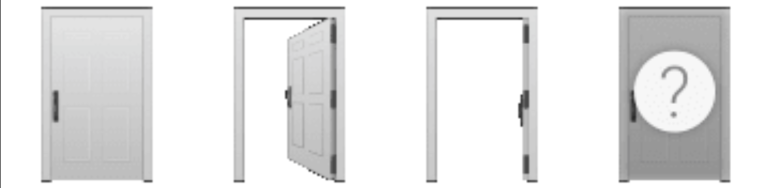
For motorized Garage/Gates in the past there was only an option for a single relay driver to control them. There are now experience button drivers for Garage, Gate, Door, Windows, TV Lift, and Projector Screen in order to control with anywhere from 1-3 relays, and up to 2 contacts to sense the state. There are updated icons for each of these, as well as extra icons for an unknown state, and a partial state (if using 2 sensors).
Note: These drivers are experience buttons and as such they are not visible on navigators by default. They will need to be made visible from System Design > Room > Navigator > (Watch, Listen, Comfort, Security)
Below are the icons for each state of the drivers which are Closed, Partial, Open, Unknown.
Relay Garage Door Controller (OS2.9+)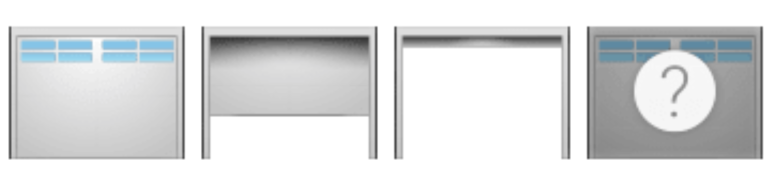
Relay Gate Controller (OS2.9+)

Relay Door Controller (OS2.9+)
Relay Window Controller (OS2.9+)

Relay Lift Controller (OS2.9+)

Relay Screen Controller (OS2.9+)

Auto Lock
This driver has a relay and contact connection that can be made to a door sensor and door lock with an Auto Lock time set within the driver properties. When these connections are made and the time set in the driver it will keep the lock from locking until the door has been shut. Once the door has been shut, it will reset the Auto Lock timer then lock when the timer expires. There are 3 icon options available in the driver properties to suit your customer’s needs, one set shows Red as Locked, Green as Unlocked, another shows Green as Locked, and Red as Unlocked, the last icon set shows the locks as Black.
States below are door closed and locked, door closed and unlocked, door open and unlocked, door open and locked, and door state unknown.

Mockupancy
If the Mockupancy driver is made visible on a navigator then the icons below will show depending on the state of the Mockupancy driver. Playing, Stopped, or Recording.
This driver enables the recording and playback of lighting blind and entertainment to simulate a property being occupied. Recording and Playback modes can be selected either in Custom Programming or via Keypad button links. The driver will record the lighting and blind state of ALL devices and rooms every 15 minutes over 7 days. You can also monitor the entertainment in a room as well. In Playback mode the lighting changes are randomized over 15 minute segments.

Security Light
This driver is designed to aid the dealer in Custom Programming with lights that should be activated for a set period of time either for security or courtesy purposes. The driver has a number of options that enable it to be flexible to suit a number of different scenarios. Any lights activated by the driver will be returned automatically to their previous levels when the timer expires – although this can be overridden.
Custom Experience buttons are provided to either enable or disable the triggering of the light as well as to manually run the timer (regardless of the enable/disable state). The driver also has keypad button links with definable LED colors for these functions.
Below are the icons that will show up on navigator, if the driver is made visible in the room.
Enabled, Disabled, Off, and White.

LED Wizard
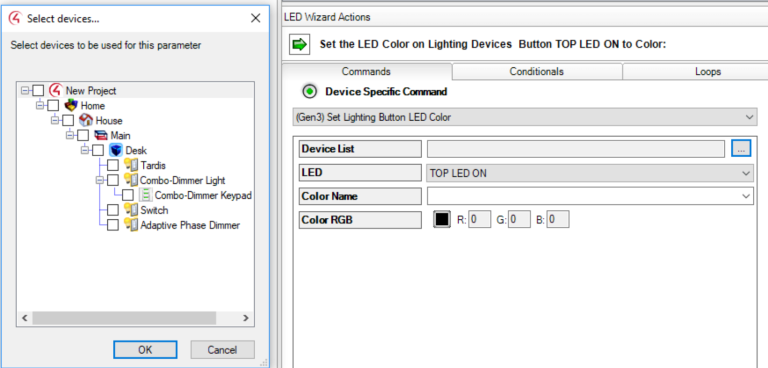
This driver allows setting LEDs of selected lights or keypads to custom colors. This makes it very simple to set multiple keypad buttons to a color at the same time, rather than spend time setting each button’s LED individually.
No Control
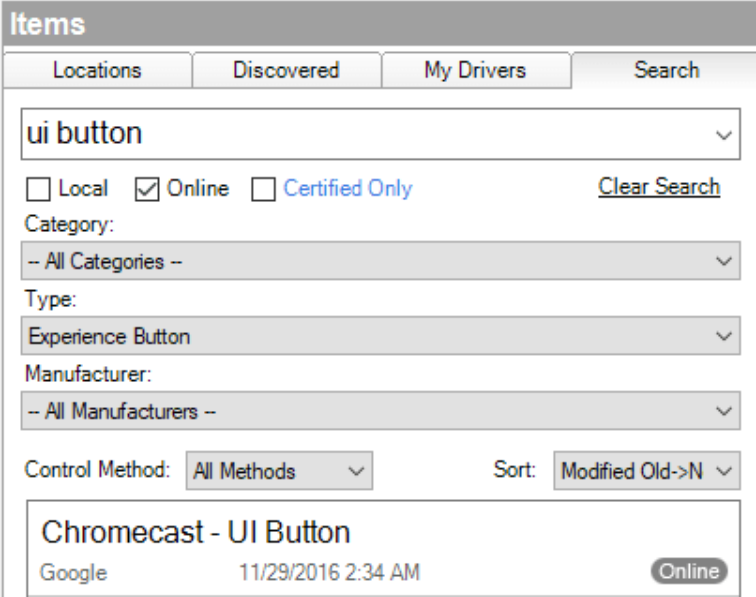
There is a suite of experience button drivers that are designed for sources that are not being controlled, and do not have room transport controls. An example of this would be a computer’s HDMI output connected to a display using the HDMI In – UI Button driver, To find these drivers do a search for the term “ui button” with the driver type Experience Button.
The available no control drivers are Cassette, Chromecast, Component In, HDMI In, Mac, PC, PS4, Turntable, Video In, VGA In, Video Camera
Note: These drivers will not work with the zones page from a navigator (Listen > Zones).
Announcement On/Off
This driver gives the customer the ability to turn announcements in the room On or Off from any navigator. The driver must be added to the room that you would like the ability to enable/disable the announcement in. By default when the driver is added it will show up under the Listen menu within the room it was added to, and by clicking on it the announcement will either be enabled or disabled from playing in that room from both distributed audio and T3 touchscreens. The Announcement On/Off driver is built into Composer Pro so to find it in the search tab you must have Local drivers checked.

Timer Experience Button
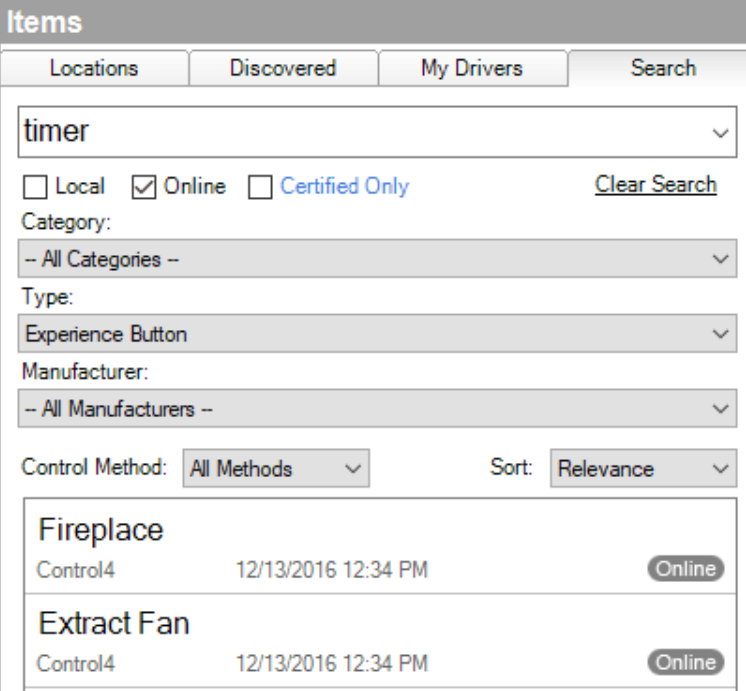
Multiple timer related experience button drivers within Composer can be added to automatically turn off relay type devices after a specified amount of time. One example of their use case is the Fireplace timer driver which will start a timer anytime it gets turned on so that it never stays on longer than the specified amount of time. To find these drivers go to the driver search tab within Composer Pro and search the online database for timer with the Type set as Experience Button.
The available timer drivers are Ceiling Fan, Countdown, Driveway Heater, Extract Fan, Fireplace, Flame, Hot Water, Pump, Radiant Floor, Relay, and 4 V-Touch by Vitrea drivers.
Sleep Timer Programming Using Countdown Experience Button
Light/Fan Button Timer
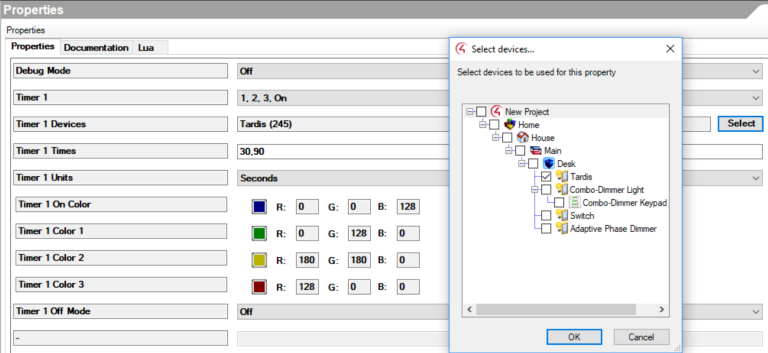
This driver allows you to create timer configurations that can be applied to multiple lighting or fan speed control devices from a selection box within the driver properties. An example of when you would want to use this driver would be if you had multiple bathrooms with fans in each of them. You would normally need to create a timer for each of these devices then program to restart the timer when the light or fan turns on, then turn the device off when the timer expires. With this driver you do not need to create any timers, just set the time in the driver and select all bathroom fans that you would like to behave like this. There are 9 independent timers in the driver properties, each allowing control of a set of devices.