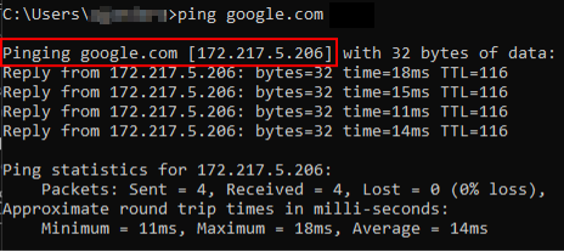
DNS (Domain Name System) is like a phonebook for the internet. It translates a website's domain name, like google.com, to its IP address so the router can connect you to Google’s services. If you can't connect to an outside address, there may be a DNS issue.
Caution: Do not change your WAN DNS unless your ISP or tech support specifically tells you to. Some ISP services may rely on these addresses.
How to select a DNS address for better connectivity
Never assume one DNS is better than the other. Run a ping test from the client's location to verify the address's response time. If it's an OvrC Pro site, you can do this under Categories > Remote Management > Pro Tools > Ping.
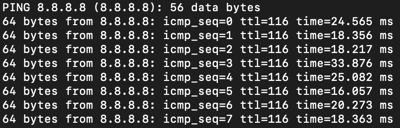
Verify that the correct public IP returns within a fast response time, and there are no timeouts.
Pro Tip: Use DNS servers from two different services. That way if one service goes down, you have a backup.
Popular public DNS services
- Google: 8.8.8.8 / 8.8.4.4
- Cloudflare: 1.1.1.1 / 1.0.0.1
- Quad9: 9.9.9.9 / 149.112.112.112
- OpenDNS: 208.67.222.222 / 208.67.220.220
Running a ping test with MacOS onsite
- Open Terminal.
- Type nslookup {domain} <dns_server_ip>. For example: nslookup google.com 8.8.8.8
This verifies the address that the DNS resolves to. - Type ping <dns_server_ip>. Example: ping 8.8.8.8. Let this run for 5 to 10 minutes.
- Press Control + C to stop the test, then repeat these steps with the next DNS server.
Running a ping test with Windows on-site
- Open Command Prompt.
- Type nslookup {domain} <dns_server_ip>. For example: nslookup cloudflare.com 1.1.1.1
This verifies the address that the DNS resolves to. - Type ping <dns_server_ip> -t. Example: ping 1.1.1.1 -t. Do not forget the "-t. This lets you terminate the command. "Let this run for 5 to 10 minutes.
- Press Control + C to stop the test, then repeat these steps with the next DNS server.
Ping test examples